Thursday, 5 April 2007

SharePoint 2007: Creating a custom New Item and Edit Item for Lists

Kristian Kalsing explains how to do this on his blog.

  • Open the site in SharePoint Designer.
  • Browse to the list and open the 'NewForm.aspx' web form.
  • Click File > Save As... and give the form a new name such as 'NewFormEdited.aspx'
  • Delete the default List Form Web Part from the page.
  • Click Insert > SharePoint Controls > Custom List Form.
  • In the List or Document Library Form dialog, select the appropriate list, content type and type of form.
  • Click OK and a new Data Form Web Part is added with controls representing all the fields from the list.
  • In the newly added Data Form Web Part, delete any rows containing fields not to be shown to the user (ensure that fields being removed are not required fields without default values as this would prevent the user from submitting the form).
  • At this point, you can do other customisation such as rearranging the fields if you wish.
  • Save the site.

Tuesday, 3 April 2007

SharePoint 2007: Changing the title of an RSS Feed in the RSS Viewer web part

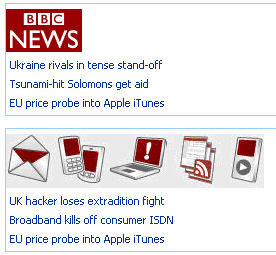
You might usually find that the RSS Viewer displays an RSS Feed title which you don't really like and which you want to change. Or you might want to add a nice image to your RSS feed. You can by hacking into the XSL used by the RSS Viewer Web Part.

Steps to do this:

  1. Edit Page, and Modify Shared Web Part
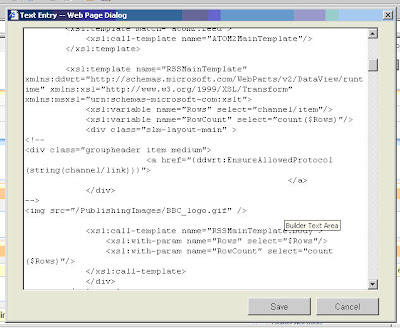
  2. Click on the XSL Editor
  3. Find the following div: groupheader item medium

You can now do any changes you want to the anything inside the div. Ideally just comment (HTML) out the original so you can revert to the original if you break something or keep a copy of the original XSL.

E.g


or even nicer (upload CoolRSSImage.jpg) to your publishing Images


Final Result


kick it on SharePointKicks.com

Friday, 30 March 2007

Adsense: Insert Google Adsense Into Blogger XML Post Body

I've been searching for a way of brining up AdSense just after the body of my post. Searched high and low and most of the ways I found were not working. Finally I got it to work thanks to this post.

So if you've been managing to change the template with the AdSense code with no errors, but still get a javascript error when you view the blog, follow this post.